Google Cloud Dataplex
The Google Cloud Dataplex connector for Rudol allows you to integrate your Dataplex Universal Datacatalog metadata. Rudol will be able to access metadata related to Entries and Aspect Types to fill your Data Catalog.
Connection parameters
| Name | Type | Description |
|---|---|---|
| Service Account Keyfile | json | JSON Service Account key file content, see Generate Service Account keyfile |
| Location | text | Dataset region. Where the tables are located (i.e. us-central-1 or US) |
| Aspect Types | text | List of aspect types to include in extraction. You can leave this empty to extract all aspects. |
Include Specific Aspect Types
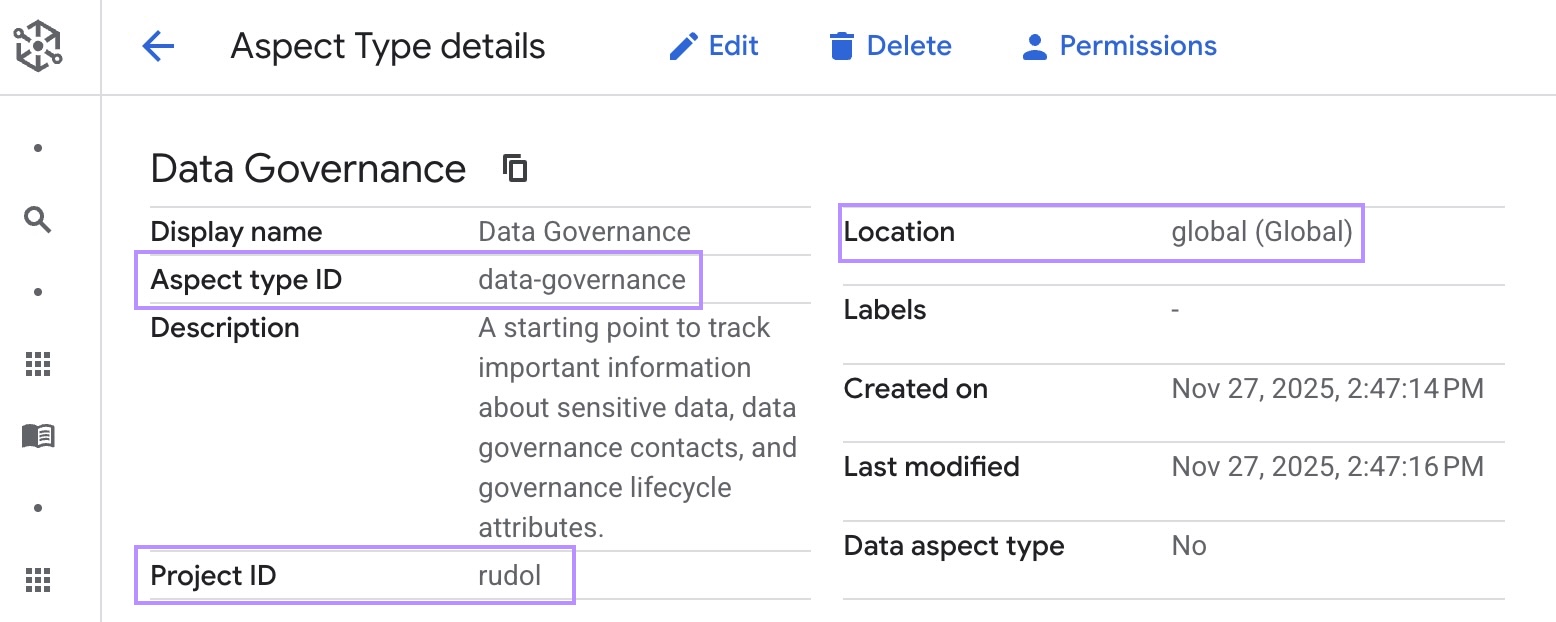
You can select specific aspect types to include. If specified, only entries using these aspect types are extracted. To specify your aspect types you need to provide a list of the aspect types resource names with this format:
projects/{PROJECT_ID}/locations/{ASPECT_LOCATION}/aspectTypes/{ASPECT_TYPE_ID}
You can find all this information by:
- In the Google Cloud console, go to Dataplex Universal Catalog.
- Go to Catalog in the Manage Metadata section.
- Click on the Aspect Type you want.
- In the top section you will find all the information you need.
Generate Service Account keyfile
Create a service account in your-storage-project
- In the Google Cloud console, go to IAM & Admin -> Service Accounts page.
- Select your project.
- Click + CREATE SERVICE ACCOUNT.
- In the Service account name field, enter a name. The Google Cloud console fills in the Service account ID field based on this name.
- Click CREATE AND CONTINUE.
- Click Select a role field and add the required roles.
info
Minimum permissions for catalog discovery require at least Dataplex Catalog Viewer role.
- Click Done to finish creating the service account.
- Do not close your browser window. You will use it in the next step.
Download a JSON key for the service account you just created
- In the Google Cloud console, click the email address for the service account that you created.
- Click KEYS.
- Click ADD KEY, then click Create new key.
- Click CREATE. A JSON key file will be downloaded to your computer.
Your JSON Service Account key file should look like this:
{
  "type": "service_account",
  "project_id": "your-composer-project",
  "private_key_id": "132asd123asd123asd",
  "private_key": "-----BEGIN PRIVATE KEY-----\n...\n-----END PRIVATE KEY-----\\n",
  "client_email": "my-service-account@your-composer-project.iam.gserviceaccount.com",
  "client_id": "1234567890123456789",
  "auth_uri": "https://accounts.google.com/o/oauth2/auth",
  "token_uri": "https://oauth2.googleapis.com/token",
  "auth_provider_x509_cert_url": "https://www.googleapis.com/oauth2/v1/certs",
  "client_x509_cert_url": "https://www.googleapis.com/robot/v1/metadata/x509/my-service-account%40your-composer-project.iam.gserviceaccount.com"
}
If you need more details on the previous steps you can check BigQuery Doc here