Data Quality Badge
The Data Quality Badge is an image that shows the data quality status of a catalog item's upstream assets. You can embed it anywhere that displays images from a URL, such as BI dashboards, internal portals, wikis or README files.

Because the badge is served from a public URL, viewers don't need a Rudol account to see it.
Badge states
| Badge | Meaning |
|---|---|
| Data is healthy. None of the item's upstream assets have failing validations. |
 | Data may be unreliable. At least one of the item's upstream assets has failing validations. |
 | Data Quality status unavailable. Rudol can't show a status for this item. See Troubleshooting. |
Rudol checks the item's lineage up to 10 levels upstream.
Below the status, the badge shows when it was last checked: by rudol.ai - checked HH:MM UTC.
Prerequisites
- An organization administrator must enable public dashboard embeds (see Step 1). This setting is off by default.
- To generate an embed URL for a catalog item, you need edit permission on that item.
- The item's upstream assets need validations configured so Rudol has a status to report.
Step 1: Enable public dashboard embeds
- In Rudol, go to Settings › Integrations › Dashboards.
- Turn on Enable public dashboard embeds.
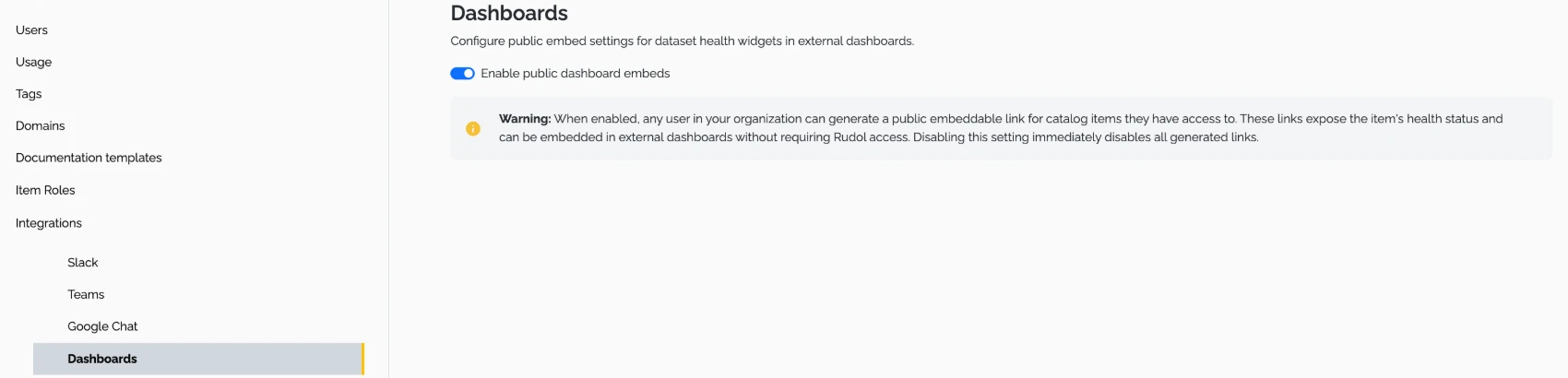
The change is saved immediately.
When this setting is on, any user with edit access to a catalog item can generate a public link that exposes the data quality status of that item's upstream assets. Anyone with the link can see it without logging in to Rudol.
Turning the setting off immediately disables all existing links in your organization, and their badges show Data Quality status unavailable. Turning it back on reactivates them.
Step 2: Copy the embed URL
- Open the catalog item you want to show the status for.
- Click the Share button next to the item's title.
- Select Copy embed URL.
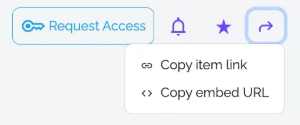
The URL is copied to your clipboard. It looks like this:
https://app.rudol.ai/catalog/item/<item>/suites/embedded/<token>/health.png
Each catalog item has a single embed URL. Copying it again returns the same URL, so badges you've already placed keep working. The first time the URL is generated, it's logged in the item's Activity.
The Copy embed URL option only appears when public dashboard embeds are enabled for your organization.
Step 3: Add the badge
The embed URL returns a PNG image. Paste it wherever your tool lets you insert an image from a URL. In most BI tools, this is an image or web content visual.
To add the badge to an HTML page or a Markdown file, use the image syntax and replace <embed-url> with your URL:
- HTML
- Markdown
<img src="<embed-url>" alt="Data quality status by Rudol" width="300" height="52">

The badge is 300 × 52 px. Make sure it has at least that much space so it isn't cut off.
The image isn't cached, so it always shows the current status.
Security and privacy
- The badge only shows one of three states (healthy, unreliable or unavailable) and when it was last checked. It doesn't expose data, metadata, validation details or the item's lineage.
- Links don't expire. To revoke them, an administrator can turn off Enable public dashboard embeds, which disables all links in the organization at once.
For more on how Rudol handles your data, see Security and Privacy.
Troubleshooting
The badge shows Data Quality status unavailable. This can happen when:
- Public dashboard embeds are disabled for your organization.
- The URL was edited or is incomplete. Copy it again from the catalog item.
- Rudol couldn't retrieve a status for the item, for example, because it doesn't have lineage in Rudol yet.
I don't see Copy embed URL in the Share menu. Public dashboard embeds are disabled for your organization. Ask an administrator to enable them in Settings › Integrations › Dashboards.
I can't copy the embed URL. You need edit permission on the catalog item.
The badge is cut off. Make sure it has at least 300 × 52 px of space.