Microsoft Teams Webhook
With Rudol Microsoft Teams Webhook you will be able to receive alerts on your Microsoft Teams channel.
info
You need to have permissions to manage Workflows in the target channel to configure this integration.
Create a Microsoft Teams Webhook
To create a Microsoft Teams Webhook navigate to the channel where you want to receive your notifications, we recommend using a channel dedicated to Rudol alerts.
- Click on the channel name to open its settings, then select Workflows.
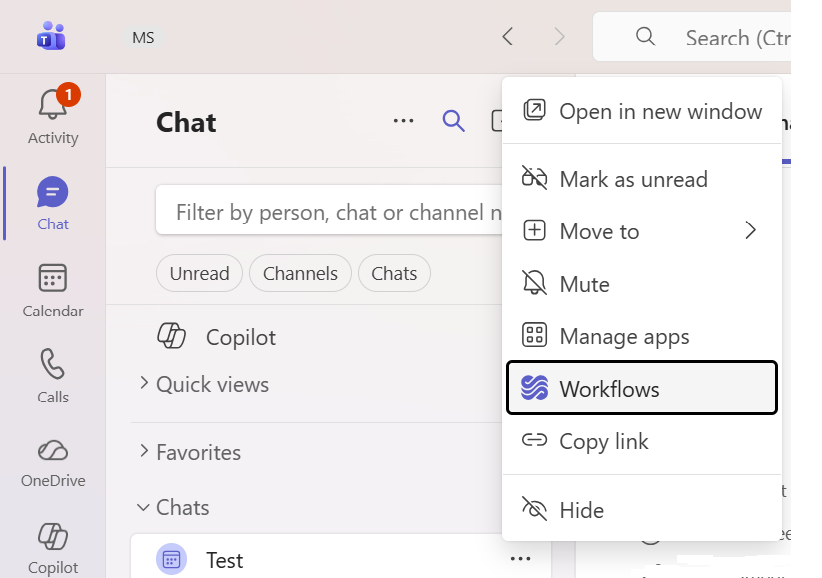
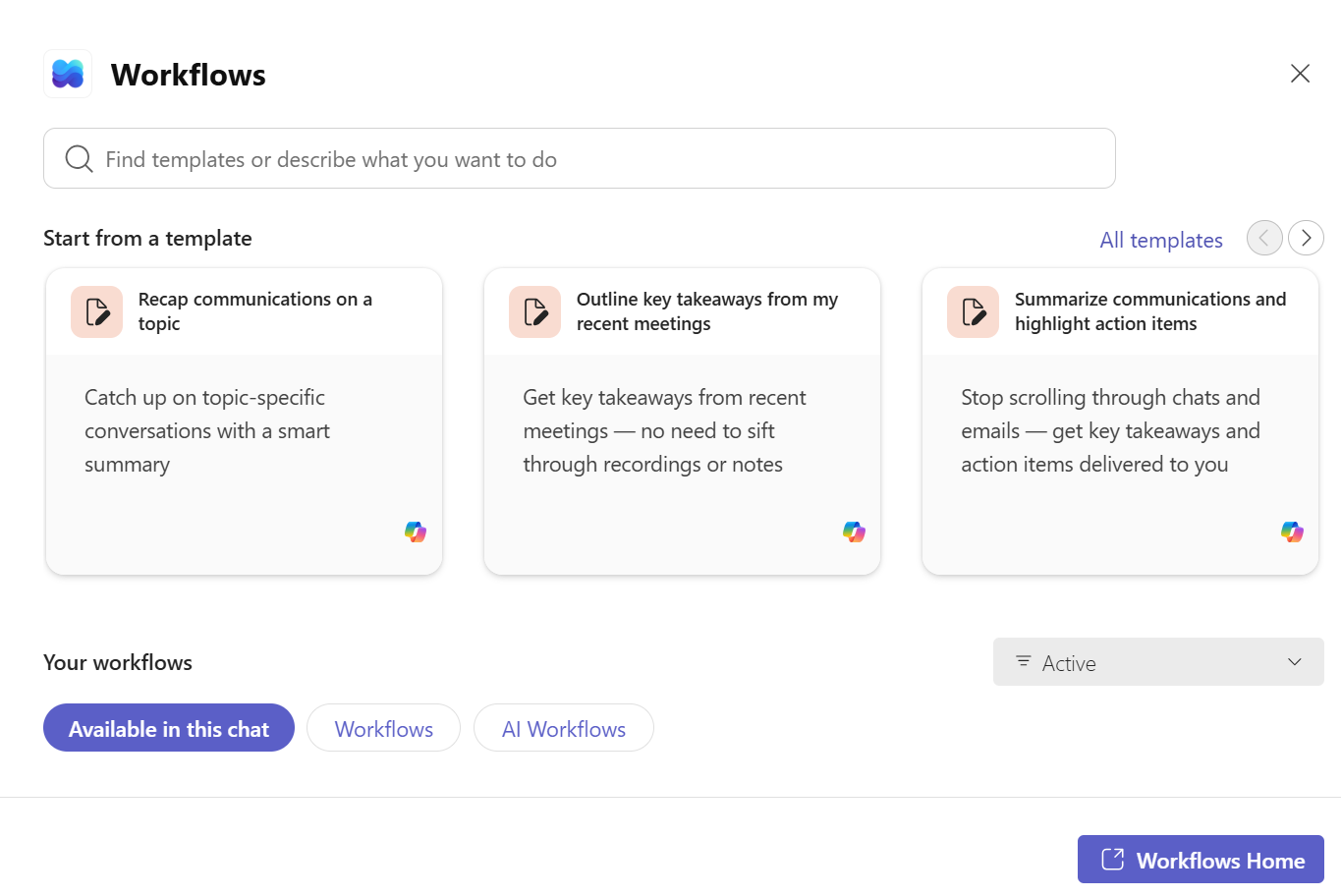
- In the Workflows panel, search for "Post to a channel when a webhook request is received" and select it.
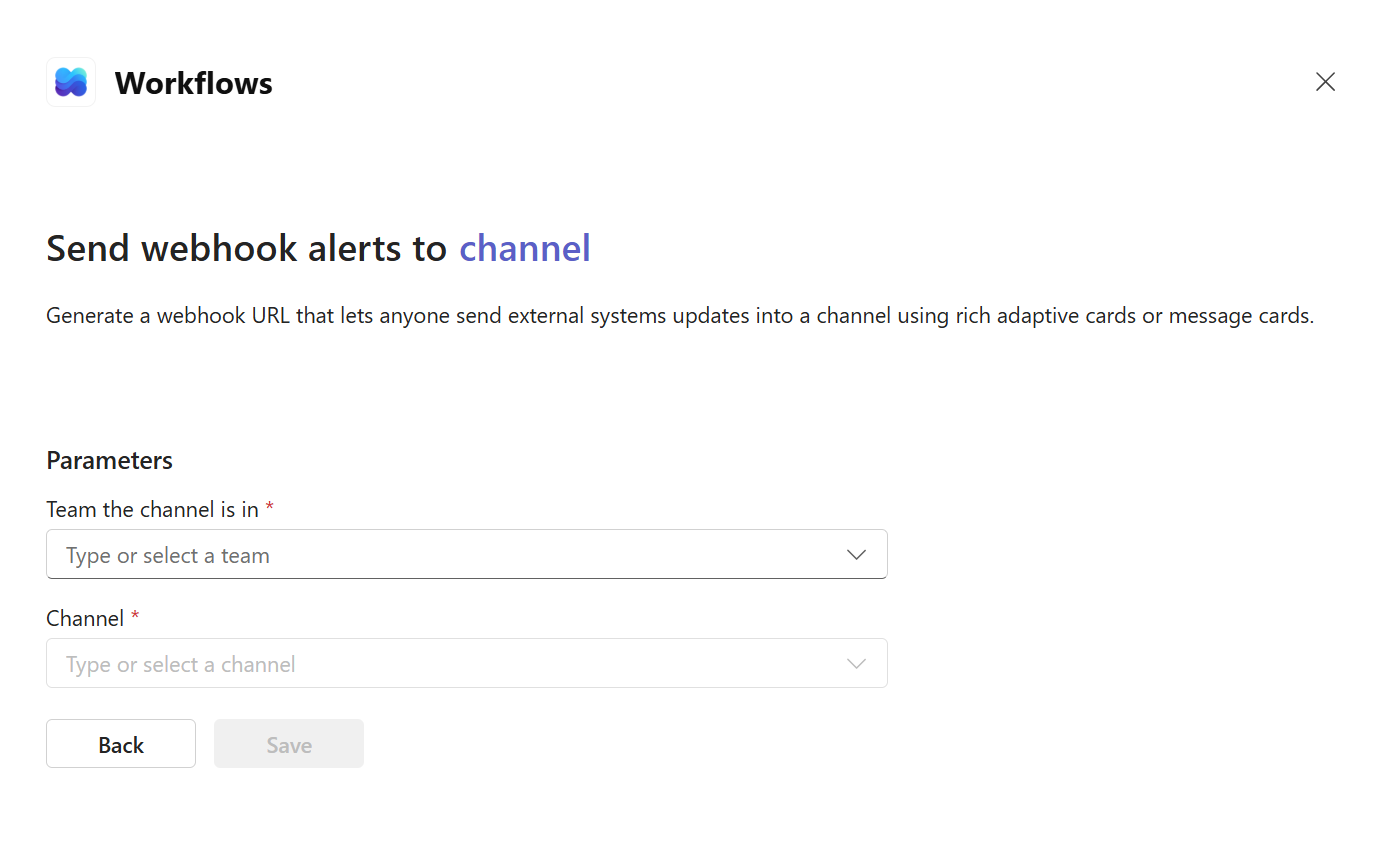
- Choose the Team and Channel where you want to receive the notifications, then click Save.
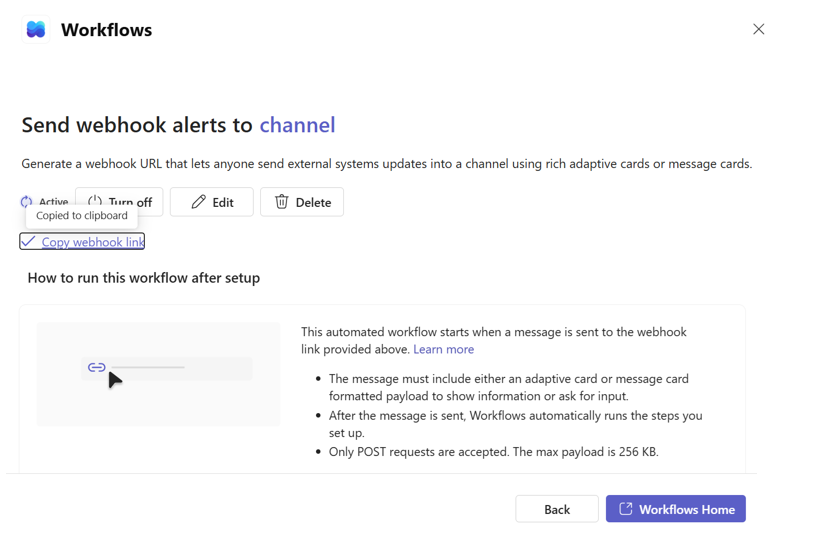
- Once the workflow is created, copy the webhook URL by clicking Copy webhook link.
- Open Rudol and navigate to your organization's settings, then go to Integrations -> Microsoft Teams and paste the copied webhook URL.
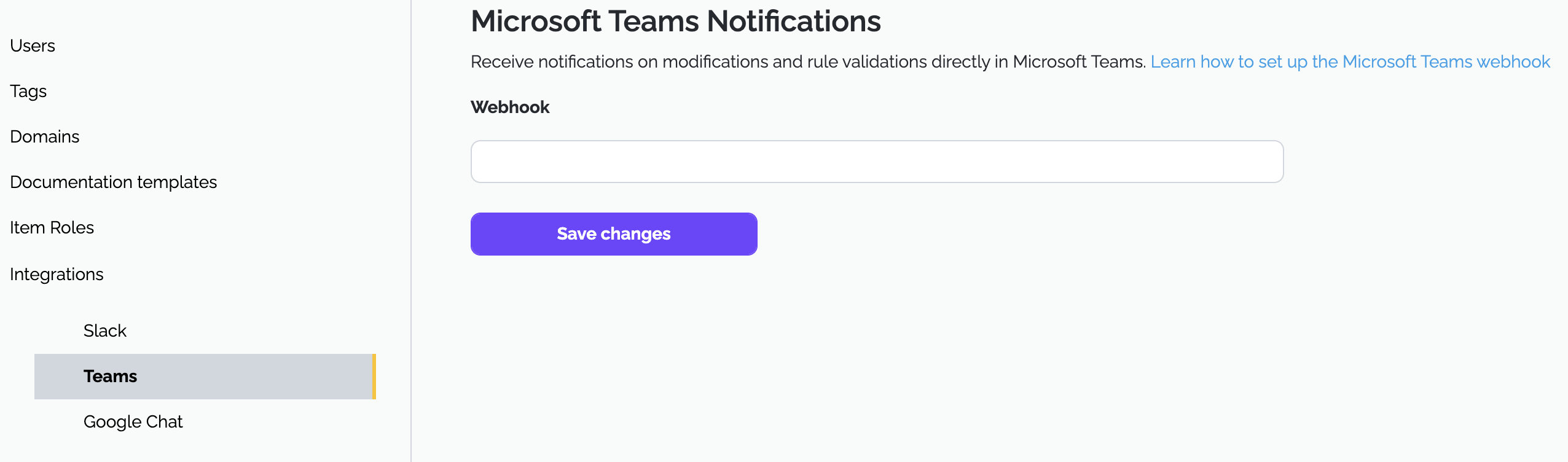
- Click on Save Changes and you're all set — Rudol will start sending notifications to your Teams channel.