AI Crew
AI Crew is a suite of AI agents that take on the item-by-item work of Data Governance so your team defines the policy once instead of executing it object by object. Every decision stays with your team: agents only ever suggest actions, and a person approves or rejects each one before anything is applied.
You need Administrator or Functional Administrator permissions to edit an agent's policy.
How it works
- You write a policy for each agent: what items it should work on and how it should do the work.
- The agent runs once a day, analyzes the items in scope and generates a task for each suggestion.
- Nothing changes in your catalog until someone approves the task.
Write a policy
Each agent is driven by its own policy, written in plain language.
- Go to Settings > Crew and open the Agent you want to edit the policy for.
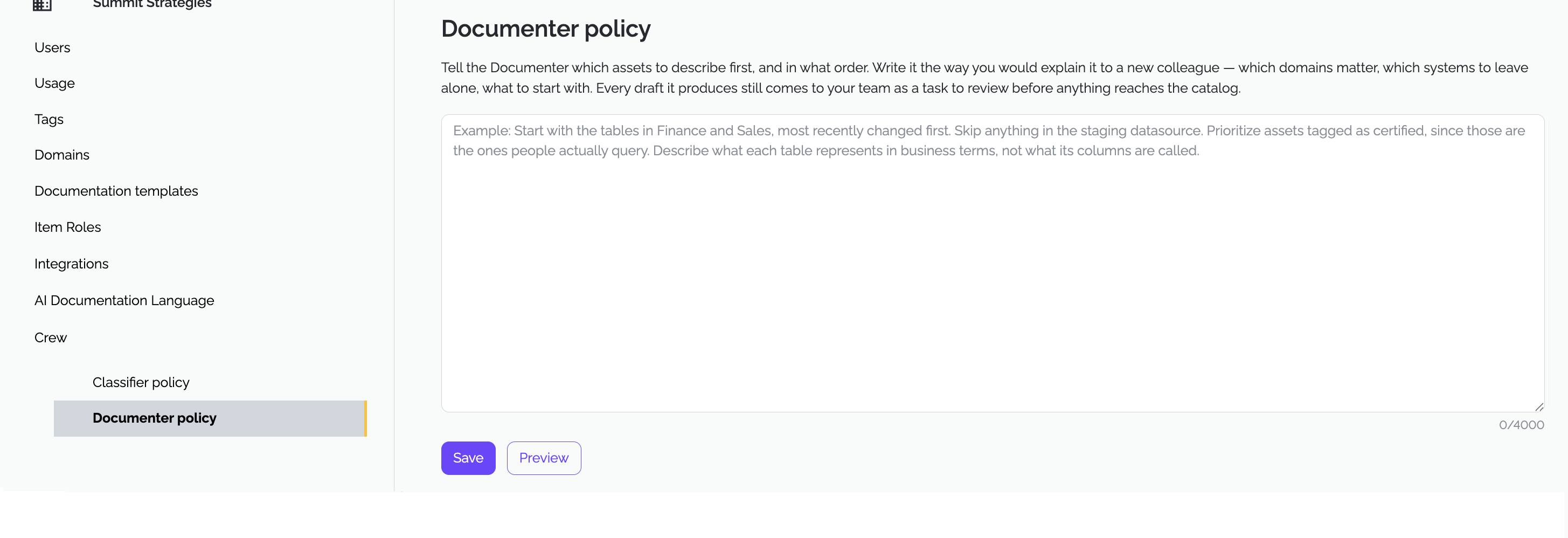
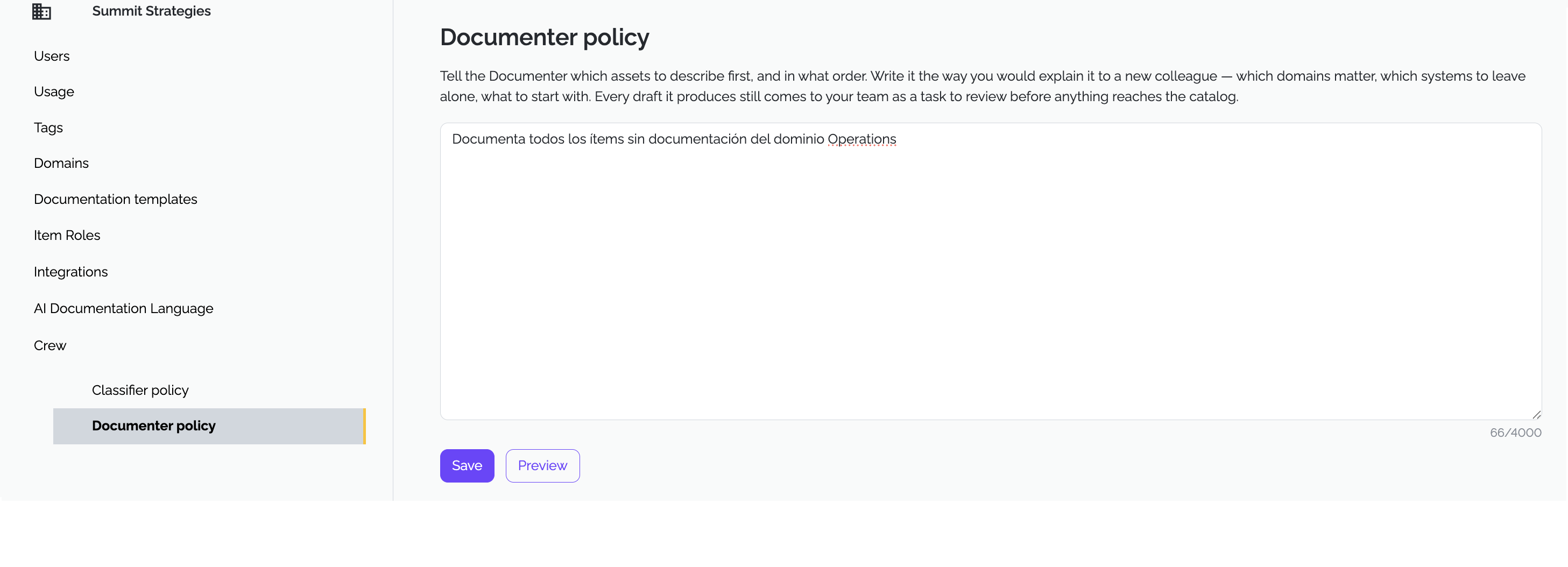
In the text box, describe what the agent should work on. Rudol turns your criteria into a search over the catalog, and the results are the items the agent will act on. For example every table that has no description yet.
In the same policy, describe how the agent should do the work: which documentation template to fill, the tone, whether the audience is technical or business, and any other rule you want it to follow. A single policy can branch by item type — for instance, one template for tables and a different one for columns.
- Click Preview to check your policy before saving. Rudol shows a sample of the items the agent would work on and the criteria that selected each one — for example, membership in a given domain. Adjust the wording until the scope matches what you expect.
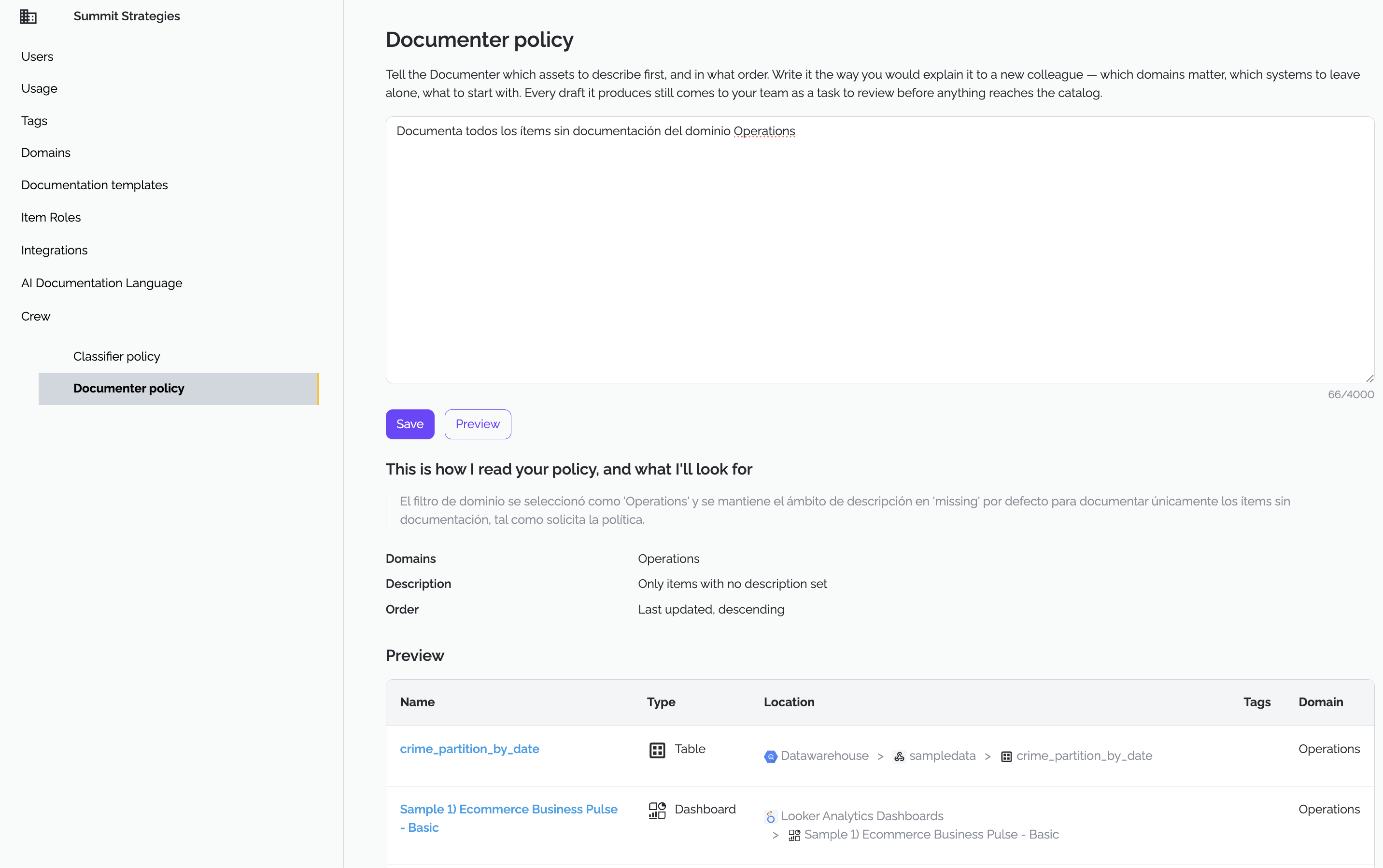
- Click Save. From then on, every task the agent generates refers to this policy.
Policies respect the language you write them in. If you write your policy in Spanish, the agent will produce its output in Spanish.
Review tasks
- Open AI Crew from the left sidebar.
- Use the filter at the top of the task list to show a specific agent — Documenter, Classifier, and so on.
- Select a task to see its detail on the right:
- The proposed action
- The justification: which parts of your policy and which properties of the item the agent took into account.
- The evidence it used
- Approve, Modify or Reject the suggestion. The justification and evidence are there so you can confirm the suggestion is grounded in your catalog and not generic before approving it.
Agents
Documenter
Documenter proposes documentation for catalog items drafting descriptions and business context from the technical metadata, lineage and related items available.
We recommend pointing its policy at one of your documentation templates, which you manage in Settings > Documentation Templates: the template defines the sections the agent has to complete and keeps documentation consistent across the catalog. You can also tell it to write for a technical or a business audience, to include examples and references.
Classifier
Classifier proposes tags and domains for catalog items according to the classification criteria your team defines — data sensitivity, business domain, criticality, or any other dimension relevant to your organization. It also covers historical items that were never classified.
Cadence and limits
Agents run once a day and generate a limited number of tasks, with a cap on how many can stay pending at once, so the review queue does not pile up faster than your team can work through it.
Agents do not invent. When there isn't enough evidence to produce a reliable suggestion, the agent won't generate a task at all. The richer your metadata — nearby items already documented, lineage relationships, existing definitions — the better the suggestions.